
On my latest project, I started building the React Native app before the iPhone X was released. After it was released I opened it up in the iPhone X simulator and realized that the top and bottom was cut off to adhere to the aspect ratio of all of the other late model iPhones, 16:9. The iPhone X has an aspect ratio of 19.5:9.
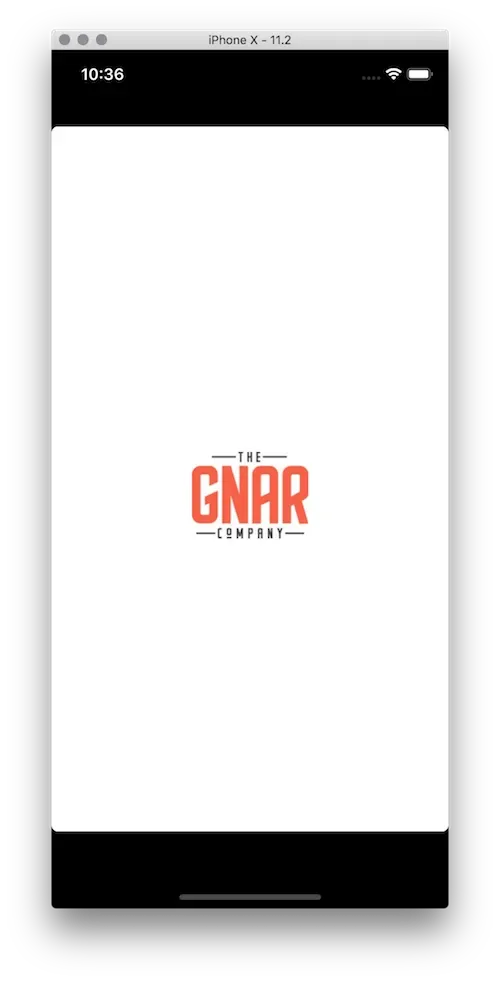
I figured that this was something that I was going to have to deal with at some point, but put it on the back burner to take care of later. As the project came to a close, Apple emailed iOS developers that it would no longer approve app
that didn't comply with the iPhone X's screen size.
As I searched for the correct way to resolve it I came across lots of examples of using the SafeAreaView component to make sure that my views weren't overlapping with the iOS top and bottom bar elements (e.g. battery indicator, clock, etc...)
However, this wasn't my problem. I needed to just "stretch" the app out vertically so that I could take advantage of the extra screen real estate.
The simple fix ended up being that I needed to add an appropriately sized splash screen for the iPhone X.
When I started the project I chose to use the Launch Screen image pattern rather than creating a LaunchScreen.xib. This meant that I needed to provide launch screens for each of the different sized devices that could open the app.
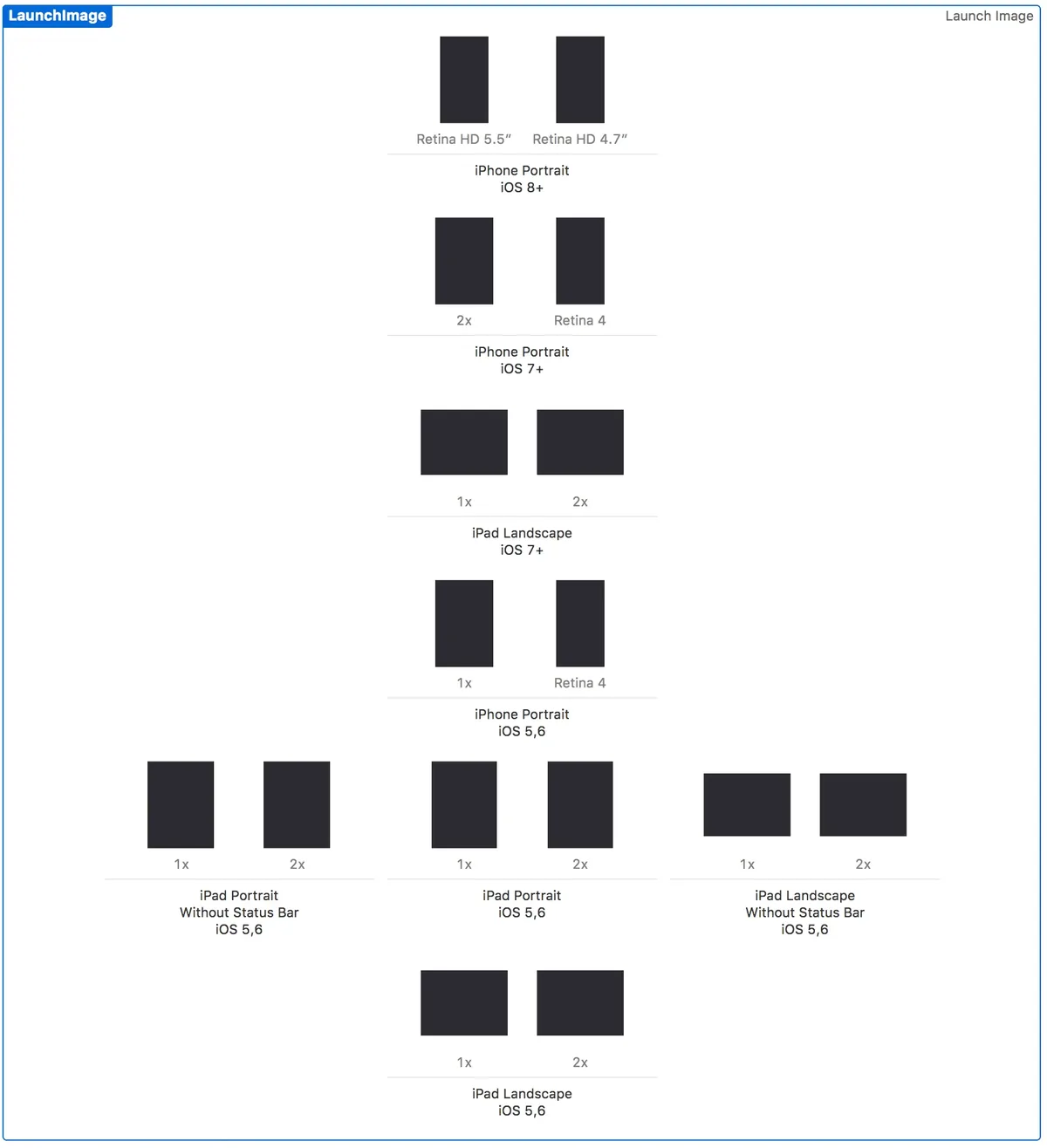
To add a screen size for the iPhone X I opened up ios/ExampleApp/Images.xcassets/LaunchImage.launchimage/Contents.json and added this snippet to the top of the JSON:
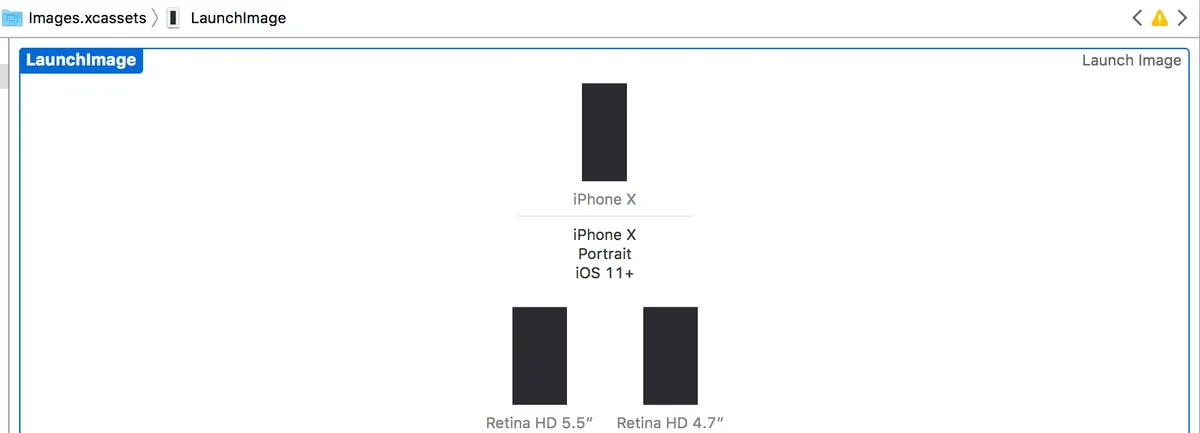
{ "extent": "full-screen", "idiom": "iphone", "subtype": "2436h", "minimum-system-version": "11.0", "orientation": "portrait", "scale": "3x"},Then, I had a new spot at the top of my Image.xcassets/LaunchImage view that I
could drag and drop an appropriately sized splash screen for the iPhone X onto.
Blank iPhone X entry#
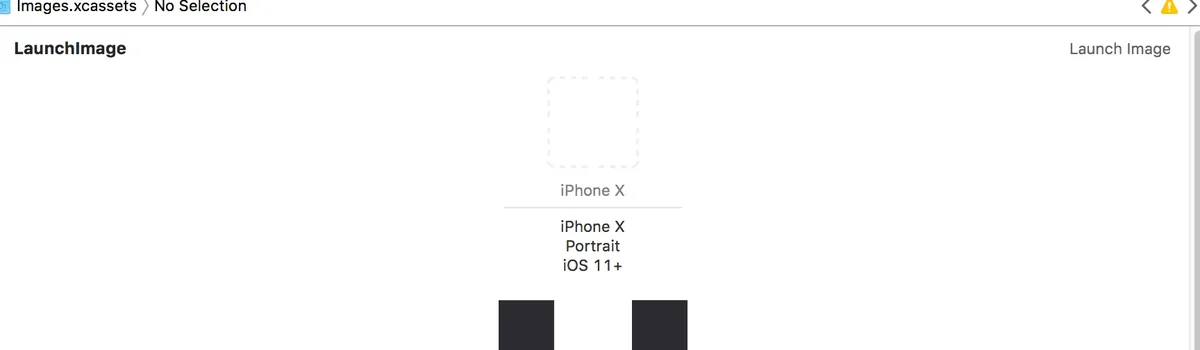
Filled In iPhone X entry#
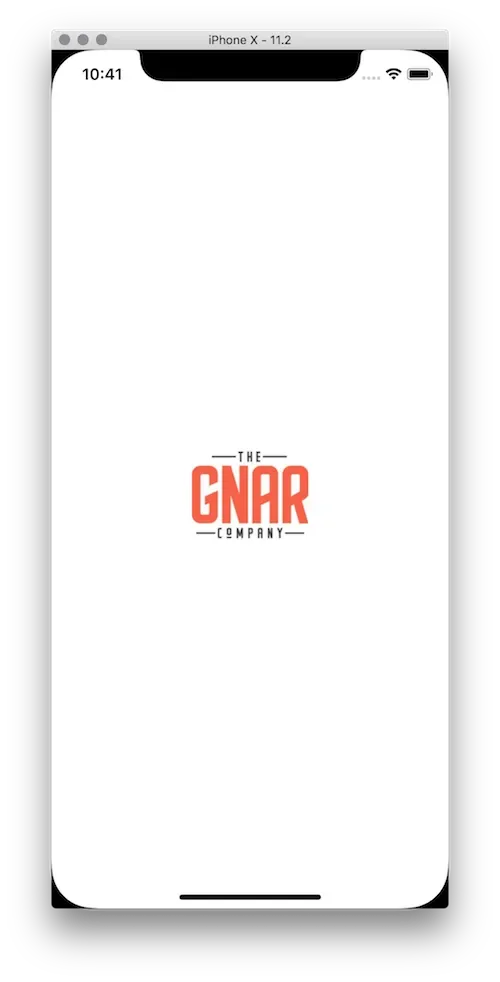
Finally, once I did that and rebuilt the app, the React Native app was displayed using
the full screen of the iPhone X! All in all, it was a fairly easy fix.
Learn more about how The Gnar builds React Native apps.